Every workflow is unique. Revit ships with a huge toolbox, but no out-of-the-box button will ever match exactly how your office names rooms, checks models or manages its archive. That’s where C# and the Revit API come in.
The Revit API lets you write add-ins that do anything you can do by hand, and plenty you can’t, across hundreds of elements or dozens of files in seconds. The hours you spend repeating the same clicks are exactly the hours a small tool can give back.
Three tasks worth automating
Again, every workflow is unique; each office needs different workflows, and automations. Some examples of things I automated before:
- Upgrading old projects in bulk. Sometimes you need to bring a whole folder of legacy projects up to your current Revit version. Opening each one, waiting for the upgrade and saving it again is a full day of babysitting. A short batch script can loop through the folder, open each file, save it in the new version and log anything that fails, while you get on with real work.
- Naming rooms with heuristics. Room names drift: «Bath», «WC», «Toilet 2», or nothing at all. With the API you can read each room’s area, level, adjacent rooms and the families placed inside it, then apply simple rules to suggest or set a name. A small room with a toilet and a sink is probably a bathroom; a large room touching the entrance is probably a living area. You stay in control and review the result, but the tedious first pass is done for you.
- Colored QA/QC views. Spotting problems in a model full of grey lines is hard. A tool can generate dedicated check views that color elements by whatever you care about: rooms missing a name, walls with the wrong type, doors without a fire rating, or elements on the wrong workset. Problems jump out at a glance, and the views can be regenerated before every issue
A real example: one-click Plan QA
Here’s a quick tool I built for our team. It lives on its own ribbon tab, and the button that matters is Plan QA: you click it once you’ve finished modeling.
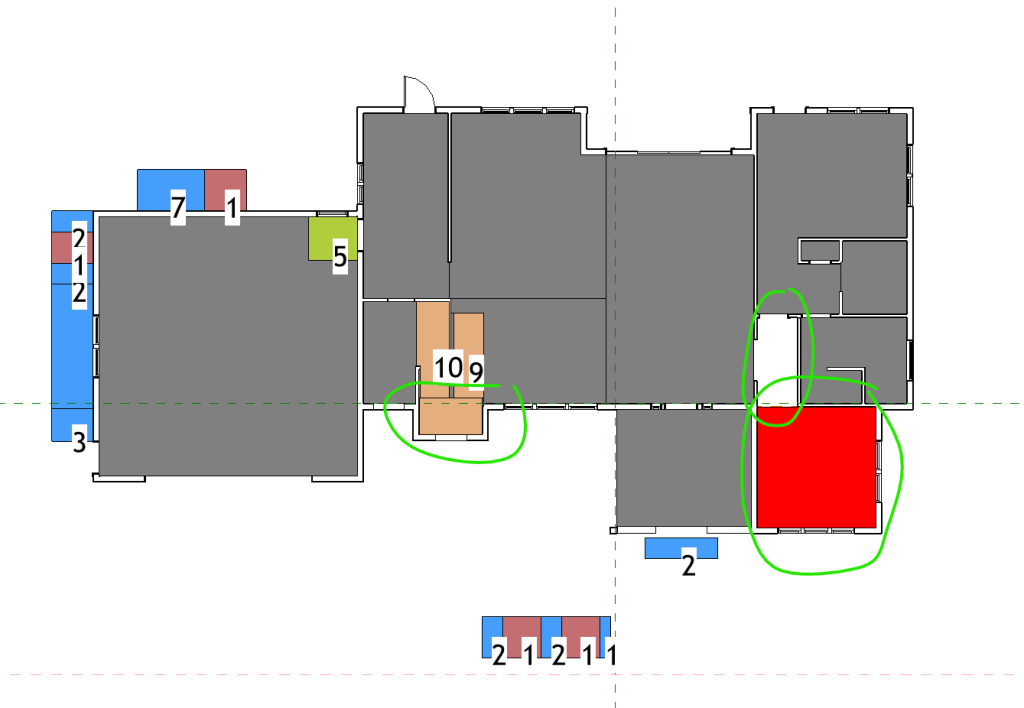
Plan QA creates one view per level, named Rooms QA View – L1, Rooms QA View – L2 and so on, and colors each one so problems stand out:
- White: room not placed. Any enclosed area without a room shows up blank. Expect the odd false alarm, since a placed room can occasionally still render white.
- Red: room without a name. Placed, but nobody named it.
- Stairs colored by floor type. Each run is colored by the floor type chosen for it, so a badly modeled stair is easy to spot.
- Step counts as labels. Each stair’s comment, holding its number of steps, is shown on the plan, so a wrong count is caught right away.
In the screenshot from a real project, two issues jump out in seconds. A red room in the bottom right was placed but never named, and the interior stair has a section that should have been split out as a landing. Finding either one by scrolling through grey floor plans would take far longer.



Deja una respuesta